Envision Installation on Arch with Controller Tracking#
Install Envision-XR from AUR#
Use your favourite AUR helper, such as yay or paru and install envision-xr-gitAUR.
yay -S envision-xr-git
# or
paru -S envision-xr-git
Envision Configuration#
💡 TipNon-Arch users follow from here!
- Select profile: WMR default.
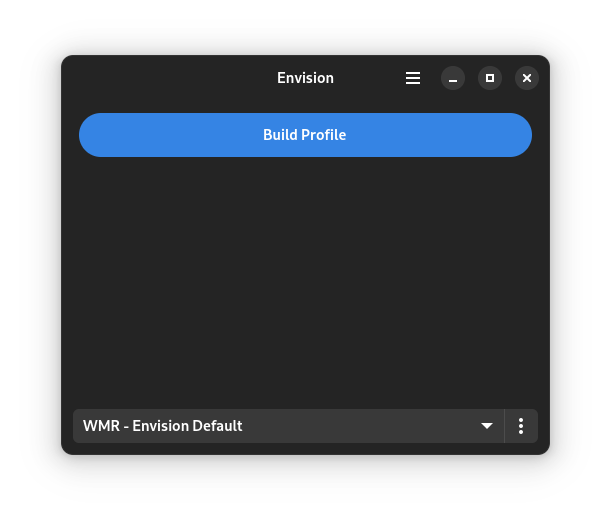
- Duplicate and adjust settings:
- XR Service Repo:
https://gitlab.freedesktop.org/thaytan/monado - XR Service Branch:
dev-constellation-controller-tracking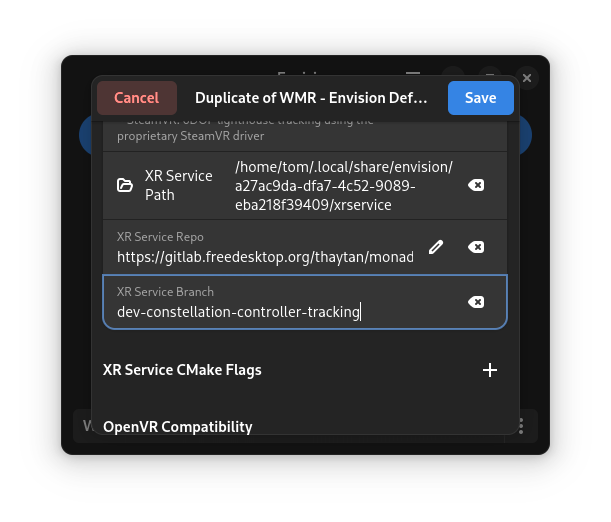
- XR Service Repo:
- Save and build the profile.
- Plug in the VR headset & turn on the controllers.
- Click Start on Monado.
- Once ready, launch a game on Steam.
Important Notes#
-
Do not close Envision before starting the game.
-
If changing the game:
- Close the game.
- Leave Monado open.
- Start the new game.
-
Always turn on the controllers before starting Envision.
-
Update controller firmware while running Windows. It’s necessary for controllers to work in Linux, updating them from Linux is currently impossible.
-
Make sure that you don’t factory-reset the controllers (performed by long-pressing the pairing button when controllers are off). This action restores the factory firmware version.
-
If Monado fails to start with the following error, you likely need to update the firmware in Mixed Reality Portal:
WARN [wmr_controller_send_fw_cmd] Controller fw read timed out after 250 ms
ERROR [wmr_bt_controller_create] WMR Controller (Bluetooth): Failed to create controller
ERROR [wmr_create_bt_controller] Failed to create WMR controller (Bluetooth)
Troubleshooting#
NVIDIA: No allowlisted displays found#
-
See the logs:
== Current Allowlist (8) == Sony SIE HMD *08 HTC Corporation HTC-VIVE HTC Corporation VIVE Pro Oculus VR Inc. Rift Valve Corporation Index HMD Seiko/Epson SEC144A HPN PNP == Found Displays (2) == SAMSUNG (HDMI-0) HP Inc. (DP-2) -
Identify which entry under Found Displays is your HMD.
-
Add the following environment variable to the Envision profile, with the correct name for your HMD:
XRT_COMPOSITOR_FORCE_NVIDIA_DISPLAY="HP Inc."
HP Reverb VR1000-2xx do not “see” controllers upon starting the headset#
The HP Reverb VR1000-2xx, also known as the HP Reverb Virtual Reality Headset - Professional Edition pairs controllers through the headset’s built-in Bluetooth.
Controller status currently is not being polled in the built files however, even with the headset being described in them at the start of one of these files.
Since they resemble the G1 controllers, you can get them to function by adding status checking for the G1 headset (which the VR1000-2xx is referenced to in the file mentioned below).
-
Find the file
wmr_hmd.cin~/.local/share/envision/profilename (a big bunch of letters and numbers)/xrservice/src/xrt/drivers/wmr/and open it. -
At line 2209 (for now), there will be a conditional statement that looks like this:
if (wh->hmd_desc->hmd_type == WMR_HEADSET_REVERB_G2 || wh->hmd_desc->hmd_type == WMR_HEADSET_SAMSUNG_800ZAA) { -
Change this line into:
if (wh->hmd_desc->hmd_type == WMR_HEADSET_REVERB_G1 || wh->hmd_desc->hmd_type == WMR_HEADSET_REVERB_G2 || wh->hmd_desc->hmd_type == WMR_HEADSET_SAMSUNG_800ZAA) { -
Save the file.
-
Rebuild your Envision profile with this adaptation.
-
Once step 5 is done, close Envision.
-
Switch on your controllers.
-
Start Envision.
-
Start your headset.
-
Your controllers should now vibrate and shine bright white, and show up as found in the Envision screen.